# Plugin Installation
To install the plugin simply download the plugin from: [https://github.com/ticaga/ticaga\_blesta](https://github.com/ticaga/ticaga_blesta)
Upload the **ticaga\_support** folder to the **plugins** folder inside your Blesta installation.
Afterwards head over to the Blesta admin and go to the Settings, click on Plugins, and Available. Hit on Install and you'll be greeted with the following:
[](https://docs.ticaga.com/uploads/images/gallery/2024-12/cS1Fvr42ngy9M0W4-ticaga-plugin.png)
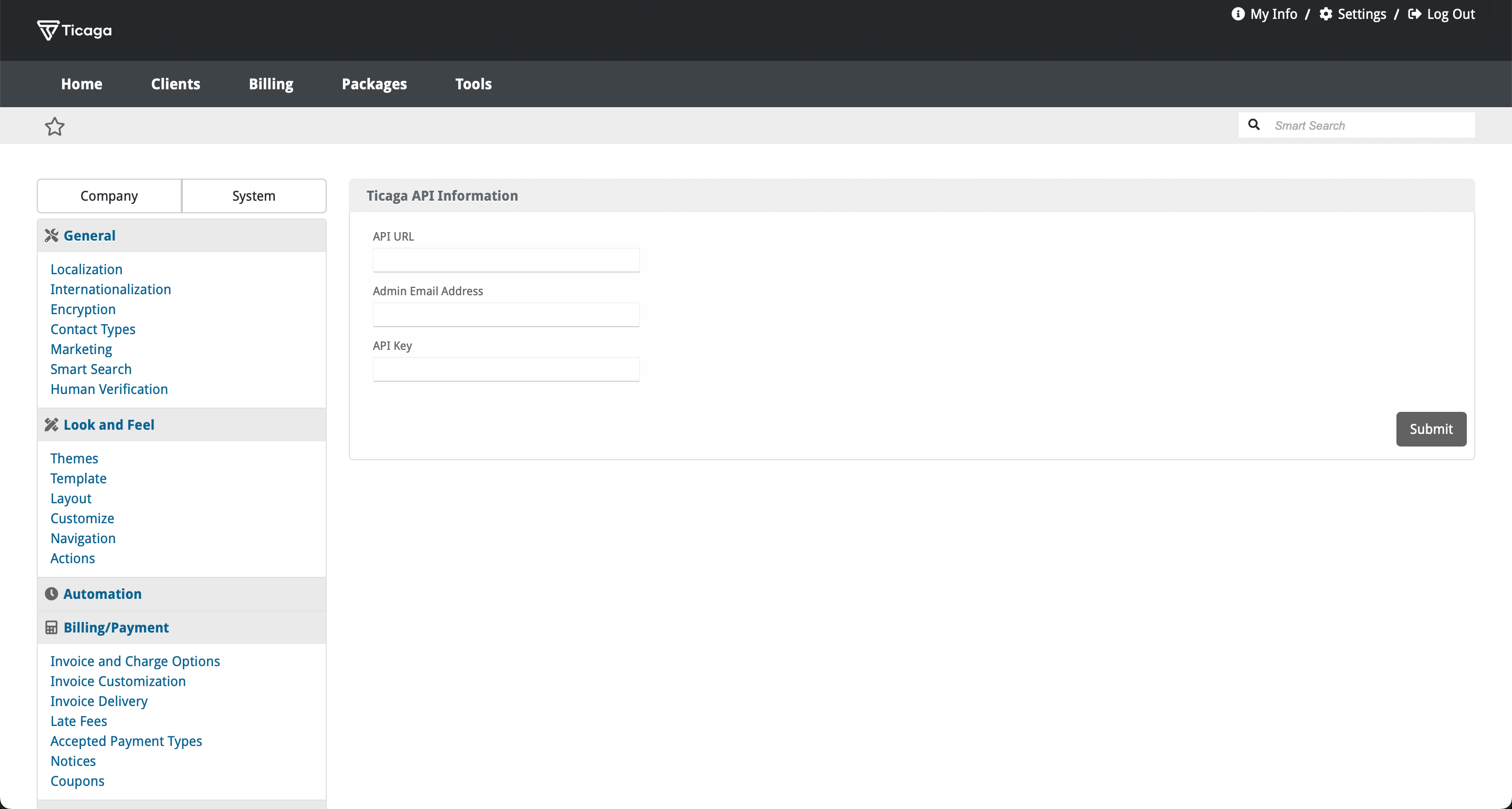
Click on **Manage** to set-up the API:
[](https://docs.ticaga.com/uploads/images/gallery/2024-12/XfldqT03Bwypn8KB-api-setup-page.png)
The **API URL** is your Ticaga installation link, for example **[https://support.ticaga.com](https://support.ticaga.com)**.
The **Admin Email Address** is your admin email address for Ticaga.
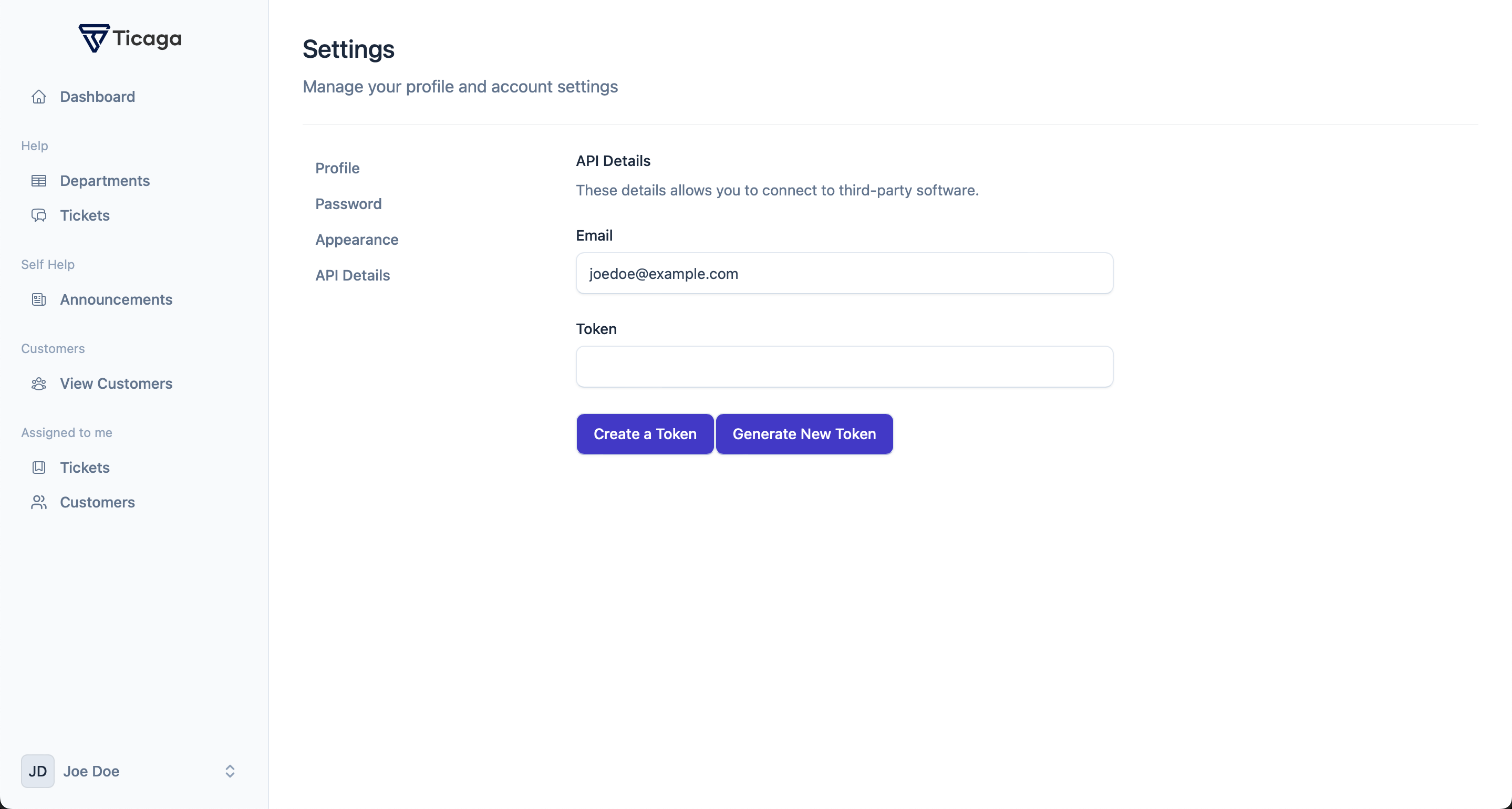
The **API Key** is the api key you can grab from Ticaga, simply log into your Ticaga installation, click on your name in the bottom left, select on **Settings** then select **API Details**.
[](https://docs.ticaga.com/uploads/images/gallery/2024-12/WK4zMnr5EHUuzQux-api-tokens.png)
The Email is your **Admin Email Address**.
The Token is your **API Key**.
**If you don't have one, click on Create a Token to generate a new one.**
---
#### Portal Link
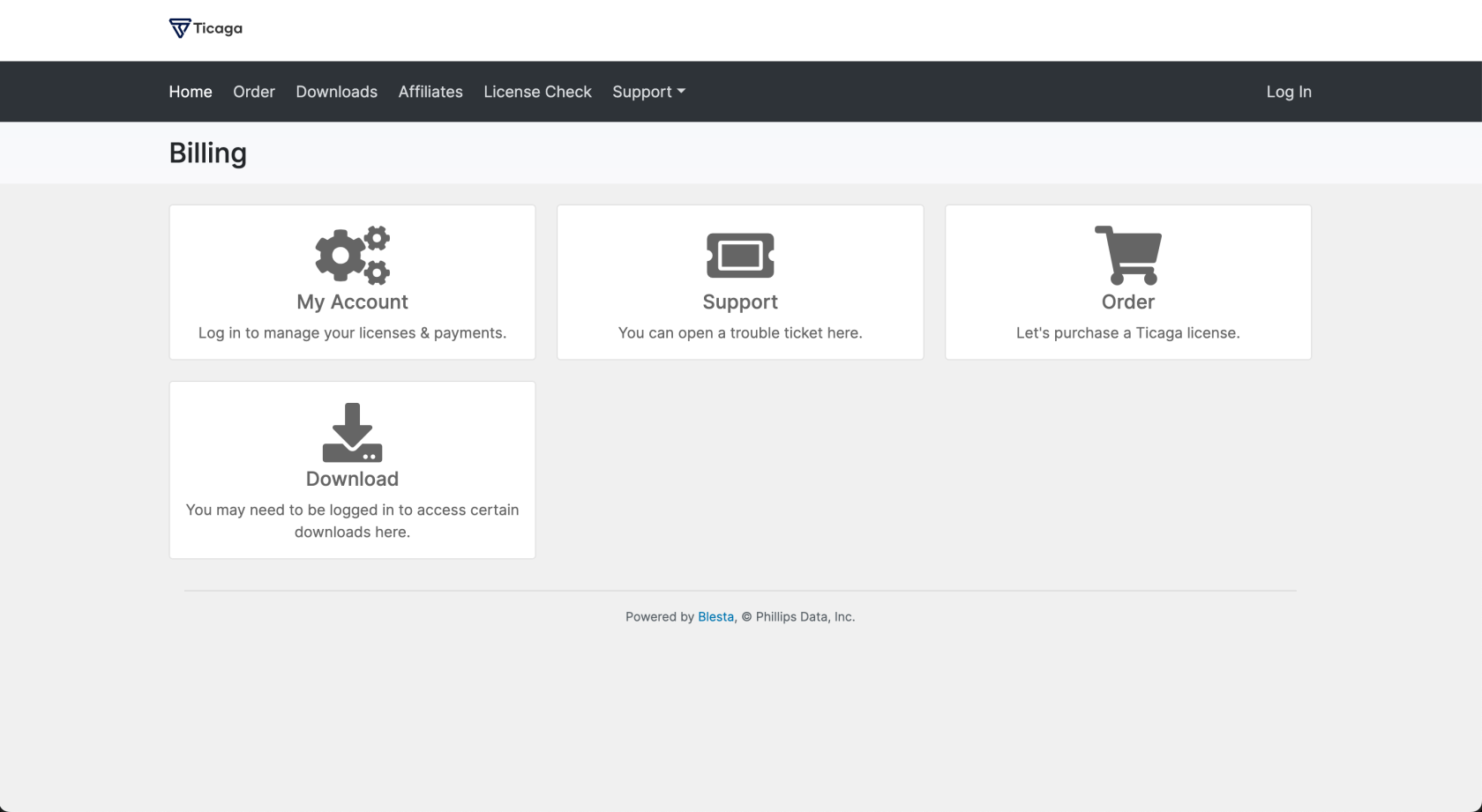
Want something like ours:
[](https://docs.ticaga.com/uploads/images/gallery/2025-09/EgAUzptOja69jnIS-screenshot-2025-09-15-at-17-02-50.png)
Simply add this to your Portal plugin on Blesta: Settings > Company > Plugins > Portal: manage and add this:
```html
{% if plugins.ticaga_support.enabled %}